How to Install IPTV Smarters Pro on Windows
Follow these simple steps to install IPTV Smarters Pro on your Windows PC and start enjoying your favorite content.
1. Go to the search engine and type in "IPTV Smarters Pro".
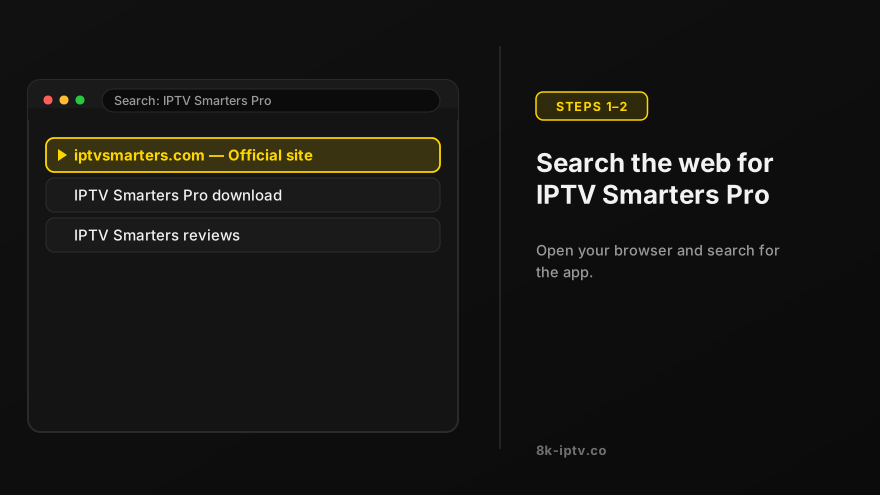
2. Then open the website https://www.iptvsmarters.com
3. Select Downloads in the Menu
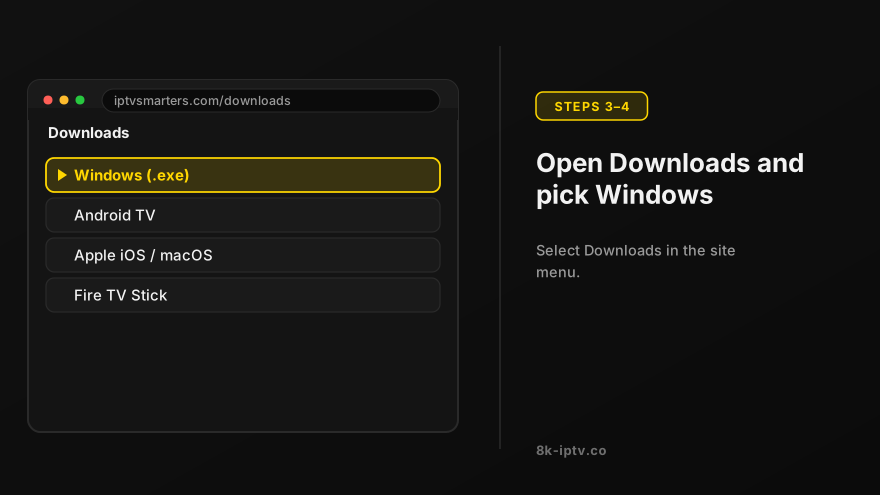
4. Download the new version of IPTV Smarters Pro.
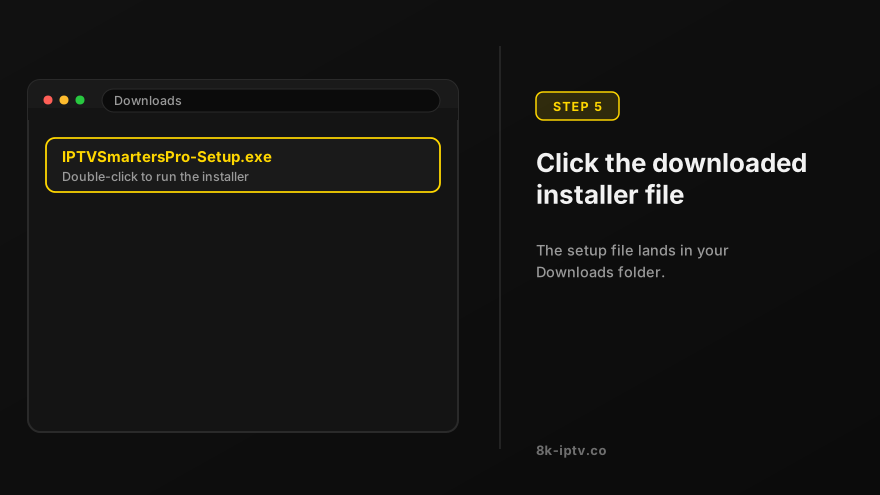
5. After the file download is complete, click on the executable file
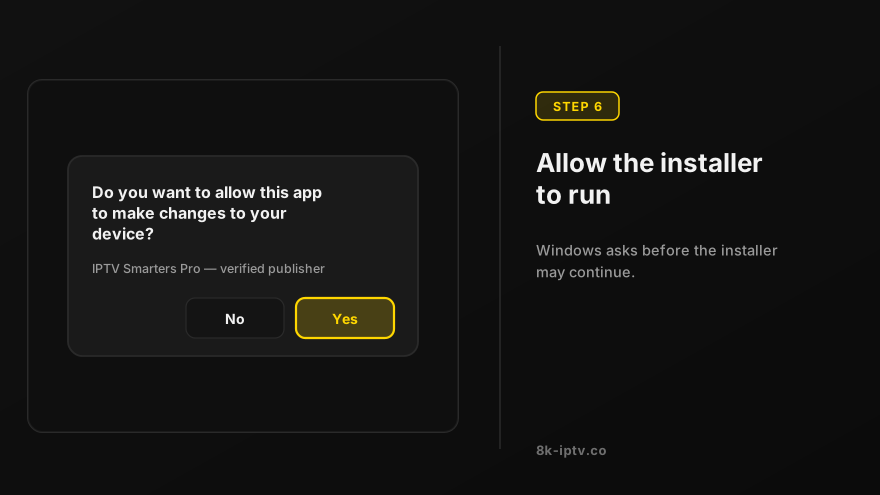
6. Windows will ask you for permission to open this file. Select "Yes"
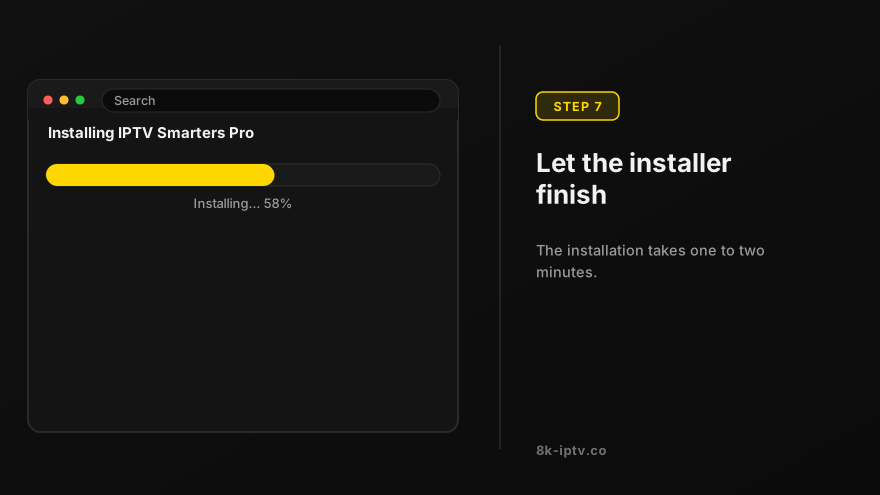
7. The file will now begin the installation process. This should take between 1 and two minutes
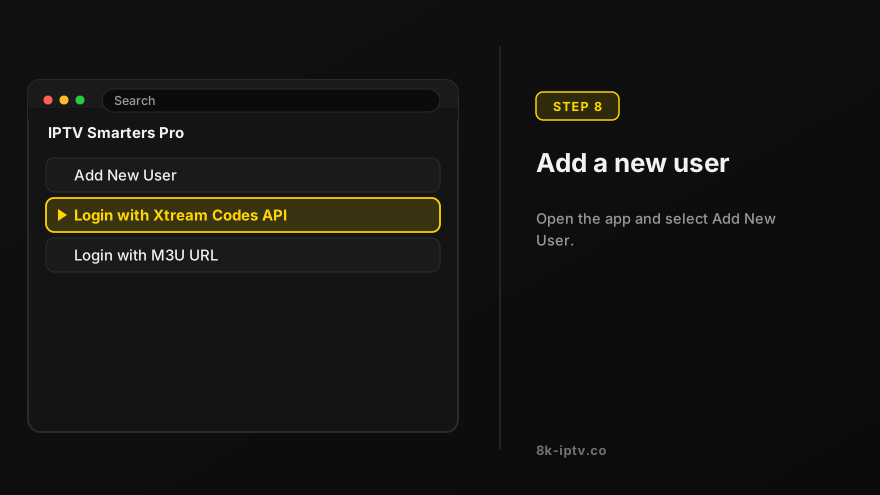
8. Once the installation is complete, start the IPTV Smarters program. Click Add New User and select Login with Xtream Codes API, Add your login data (username, password and Portal URL) for your IPTV service.

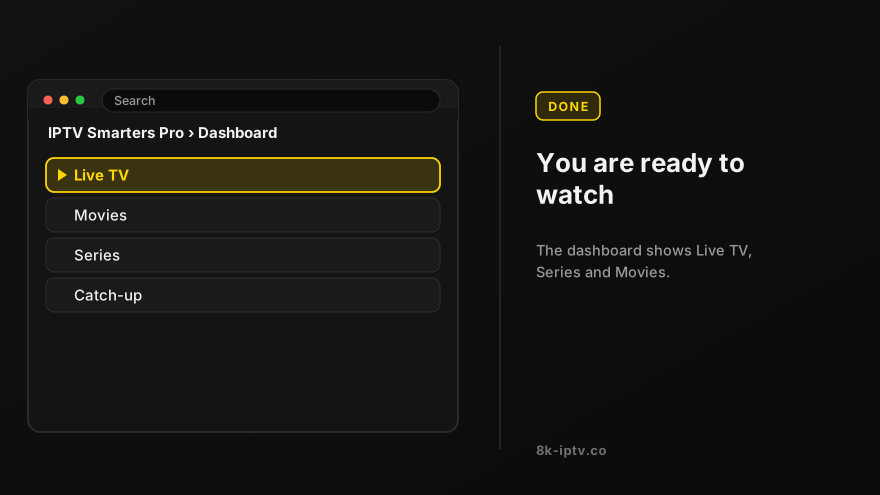
9. You are now ready to start watching content on IPTV Smarters Pro!
Before You Install on Windows
What You Need
Windows 10 or 11 (64-bit), your playlist URL or Xtream Codes credentials, and roughly 10 Mbps for HD or 25 Mbps for 4K per stream. Windows is the most flexible platform for IPTV because you are not limited to one app: a desktop player, VLC, or even a browser tab can each open the same subscription.
Which Windows Player to Choose
IPTV Smarters Desktop
The Windows build of IPTV Smarters Pro installs like any other program and accepts both Xtream Codes and M3U logins. It is the closest match to the Smart TV app, with favourites, catchup and a proper EPG, so your setup looks the same wherever you watch. The credentials are identical, which means you can follow our IPTV Smarters setup guide and simply choose the Windows download instead of the TV one.
VLC: the Fastest Way to Prove Your Line Works
If you were given a single M3U link, nothing new needs installing. Open VLC, go to Media > Open Network Stream, paste the M3U URL and press Play — the channel list appears straight away. VLC has no EPG and no favourites, but it is the quickest way to confirm the subscription itself is live and to separate a player problem from a line problem. If VLC plays and another app does not, the fault is in that app's login, not your subscription.
For 4K and 8K on a PC
A desktop app always outperforms a browser tab for high-bitrate streams, because the browser decodes video inside a sandbox. If the PC has a dedicated graphics chip, make sure hardware acceleration is switched on in the player's settings — that one option is often the difference between a smooth 4K picture and a stuttering one.
Windows Problems and Fixes
SmartScreen Blocks the Installer
Windows Defender shows a blue "Windows protected your PC" warning for applications it does not recognise, which includes many IPTV players. If the file came from the official site, choose More info > Run anyway. If you would rather not bypass it, skip the desktop app and use VLC or a browser portal — the subscription works exactly the same.
Clicking the Playlist Opens a Browser Instead
An M3U link is a playlist file, so Windows may hand it to the default browser. Right-click, choose Open with and pick your player — or better, paste the URL into the app's own playlist field instead of clicking it. If a .m3u file did download, open it directly with VLC and the channels load from there.
Stuttering, Especially on 4K
Watch Task Manager while a 4K stream runs: if the processor sits near 100%, the PC is software-decoding the video. Turn on hardware acceleration, close other heavy tabs and prefer a wired connection to Wi-Fi. A laptop running on battery is usually throttled too, so plug it in before blaming the stream.
No EPG or a Missing Channel List
Windows players rebuild the guide every time they launch, so allow a minute on the first load. If the channel list stays empty, the app may not be able to write its cache folder — installing it to a normal folder such as Documents and running it once as administrator clears that up. When a single channel is missing while others play, send our support team the channel name and we will check the feed.
Renewing and Reinstalling Windows
Your login details never change on renewal. If you reinstall Windows or move to a new PC, add the user again in your player and you are back. A single-device plan allows one stream at a time, so close the app on the old machine before watching on the new one.
Note: If you still have issues, please take a photo of your Mac address and device key with your phone and send it to our team via EMAIL: contact@8k-iptv.com or contact us via WhatsApp.
How to Install IBO Pro App on Windows
IBO Pro is another excellent option for Windows users. Follow these steps to get started.
1. Go to the search engine and type in "IPTV IBO Pro".
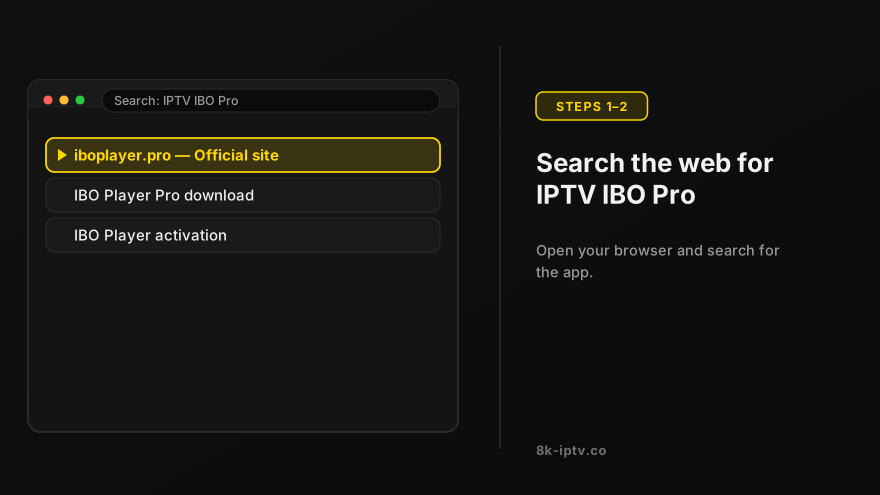
2. Then open the website https://iboplayer.pro/
3. Select the URL for Download.exe file
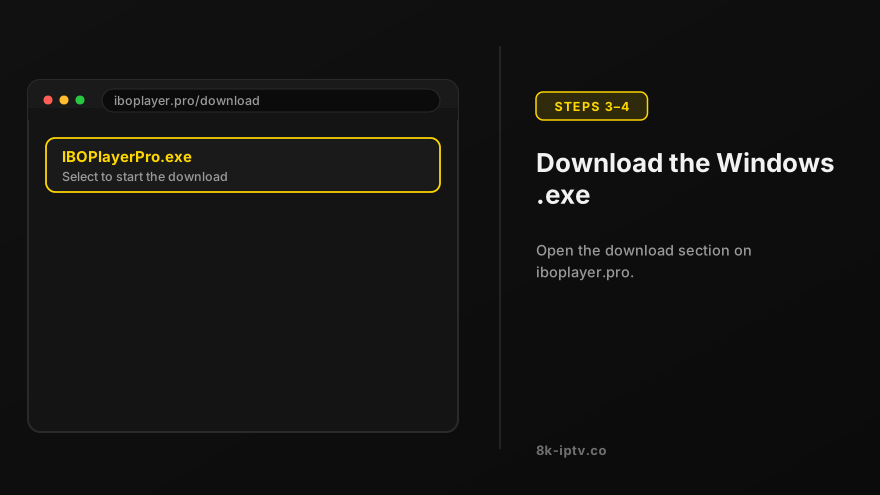
4. Download the new version of IPTV IBO Pro.
5. After the file download is complete, click on the executable file
6. Windows will ask you for permission to open this file. Select "Yes"
7. The file will now begin the installation process. This should take between 1 and two minutes
8. Once the installation is complete, start the IBO Pro program. Click Add Playlist and select Login with Xtream Codes API, Add your login data (username, password and Portal URL) for your IPTV service. Or With M3u Url.
9. You are now ready to start watching content on IPTV IBO Pro!
Enjoy your Subscription!
Price: The app gives you a 7 days free trial after that it will show you instructions on how to pay 8€ / Lifetime (we don't own the app)
Note: If you still have issues, please take a photo of your Mac address and device key with your phone and send it to our team via EMAIL: contact@8k-iptv.com or contact us via WhatsApp.
Related Setup Guides
Guides for the devices closest to this one: IPTV Smarters Pro on Smart TV, Android, iOS and Fire Stick, 8K Player VIP on Fire TV and Android, Fire TV Stick setup, iPhone, iPad and Apple TV setup. If your device is not listed, start with the full IPTV setup guide, which links to all of them.