IBO PLAYER is an incredible video streaming player which is developed especially for end-users that want to be provided with the facility to watch live TV, VOD, Series and TV Catchup on their Smart TV. This video player app is easy to use and yet highly efficient with a powerful player, attractive and very impressive layout and most importantly user-friendly.
Price: The app gives you a 7 days free trial after that it will show you instructions on how to pay 8€ / Lifetime (we don't own the app).
Compatibility: Compatible With All Devices
Order NowFor Samsung Smart TV
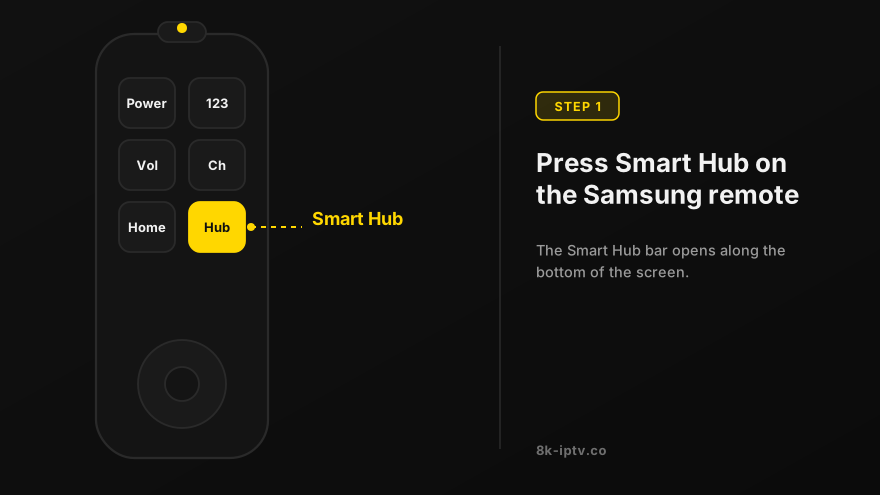
Open Smart Hub
Press the Smart Hub button from your remote.
Search for IBO PLAYER
Search for the IBO PLAYER to install.

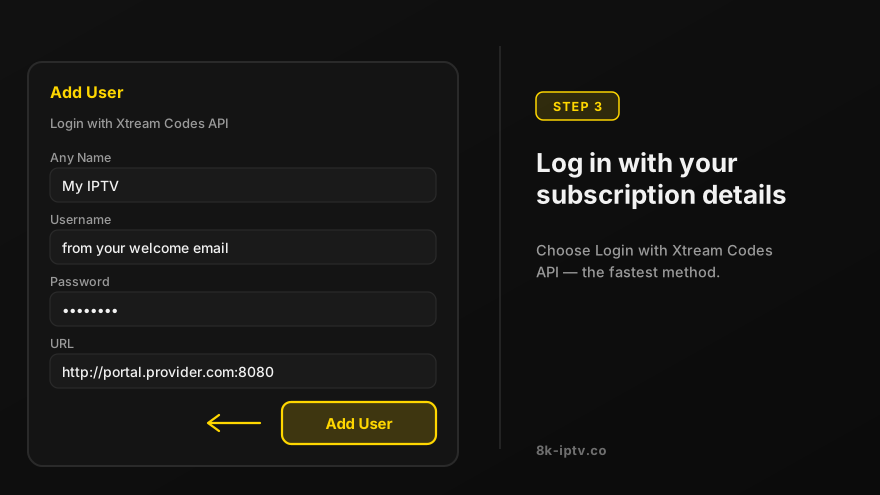
Log in the Application
Log in the Application with your subscription details i.e. Username, Password, Portal URL.
For LG Smart TV
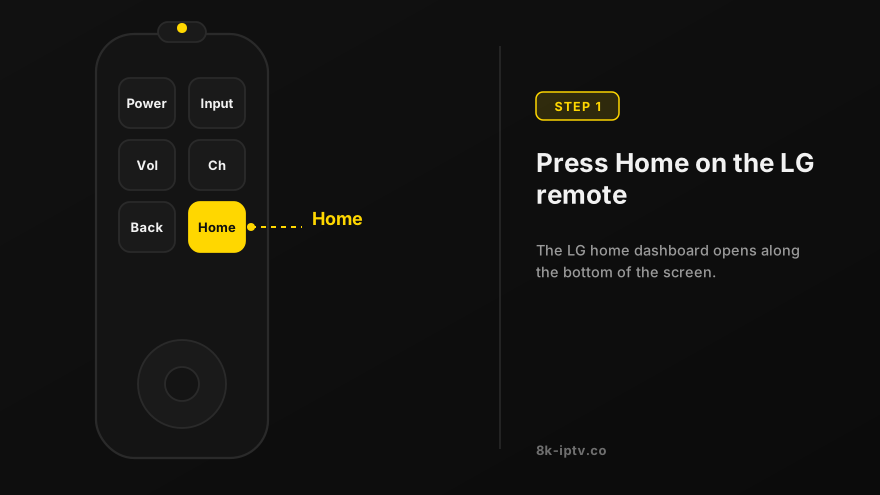
Open LG Content Store
Press the Home button on the remote & Go to LG Content Store.
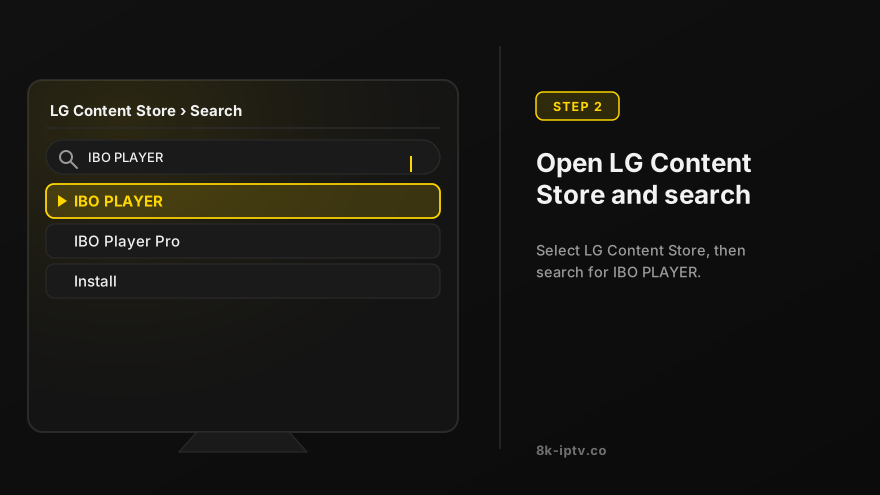
Search for IBO PLAYER
Search for the IBO PLAYER to install.
Log in the Application
Log in the Application with your subscription details i.e. Username, Password, Portal URL.
How to use IBO player app
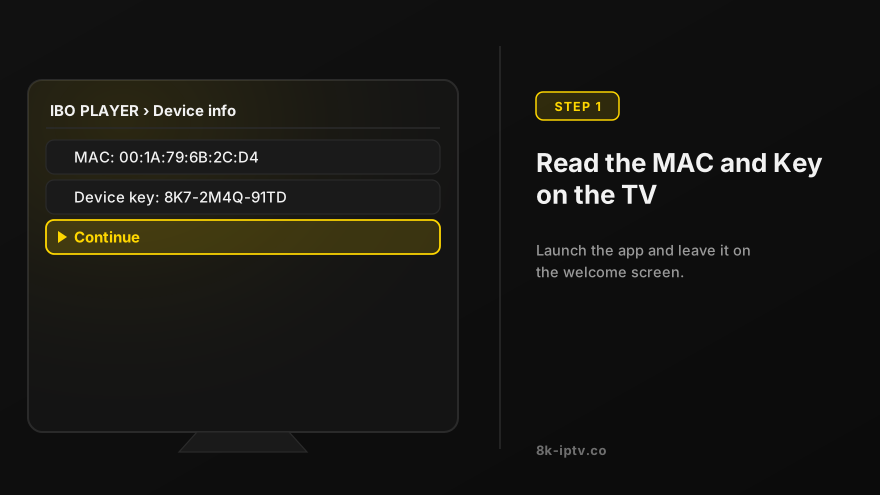
Get MAC Address and Key
Once the application is installed, launch it to get its mac address and Key.
Go to IBO Player Website
Click on this link to go to the application website: https://iboplayer.com/device/login
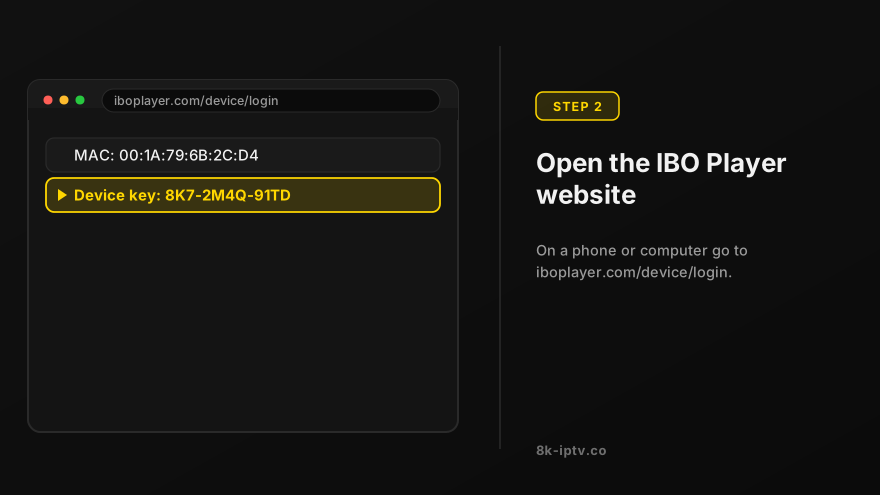
Enter Device Information
Enter the information displayed on your TV in the appropriate fields (mac and Key) to connect to your application.
Choose Setup Method
Once connected, you have two methods of setup, either with m3u link (+Add Playlist) or with Xtream codes details (+Add XC Playlist).
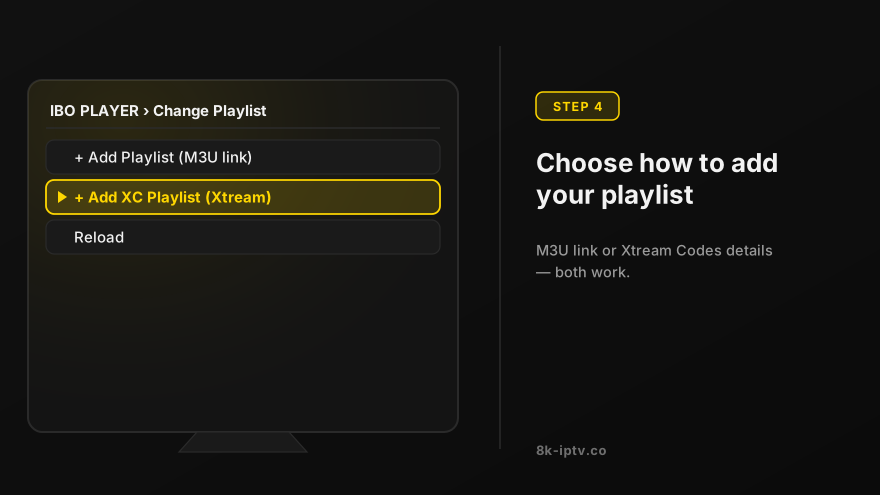
Add Your Playlist
For M3U Link: Click on +Add Playlist and integrate your m3u link.
For Xtream Codes: Click on +Add XC Playlist and enter your Xtream codes details (Server URL, Username, Password).
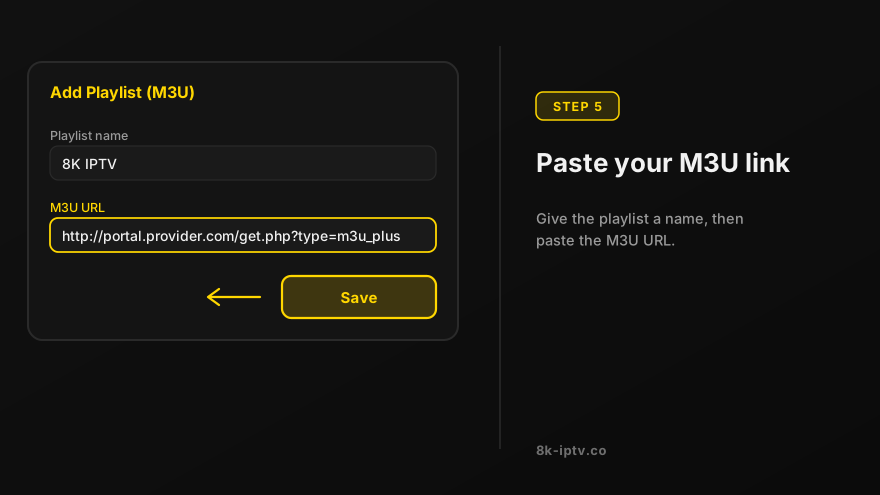

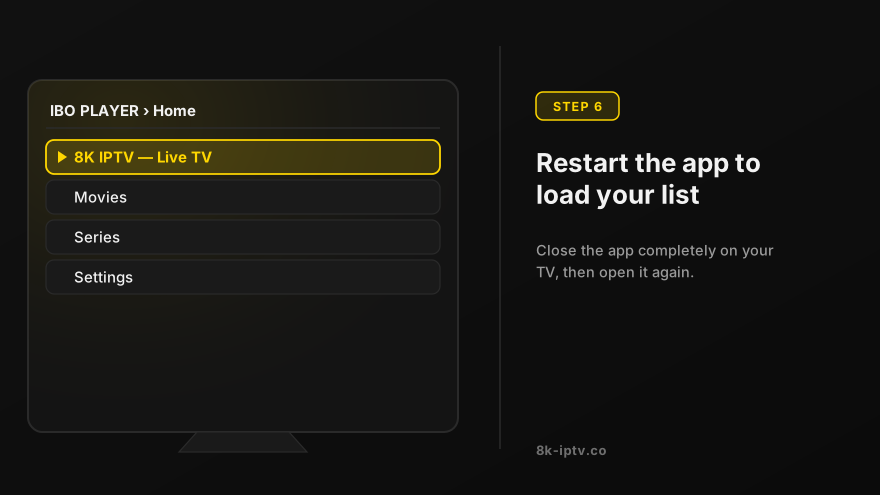
Restart the App
As a last step, it only remains to return to your TV and restart the app so that it loads and displays the list with the name given on its website.
Before You Activate IBO Player
What IBO Player Needs From You
IBO Player is free to install but activation is tied to one device, so the app shows a MAC address and a Device Key on its activation screen. Send both to our team together with your order, and we activate them against your subscription — usually within minutes. IBO Player runs on Samsung and LG Smart TVs, Android TV boxes and several Fire TV devices, and the whole point of it is that you never have to type a long playlist URL with a TV remote.
IBO Player or the TV's Own App Store?
There are two ways to get IPTV running on a Smart TV. Installing IPTV Smarters Pro straight from the Samsung Smart Hub or LG Content Store keeps everything in one app, which our Smart TV setup guide covers step by step. IBO Player instead activates by MAC address and gives you a simpler, remote-friendly interface. Both reach the same subscription, so pick whichever is actually available in your TV's store.
IBO Player Problems and Fixes
Activation Failed or the MAC Address Was Rejected
The MAC address and Device Key must match what the app currently displays, character for character — a screenshot is fine, retyping from memory is not. Important: reinstalling the app generates a new MAC address, so an activation bought for the previous install no longer applies. If the app is misbehaving, message us before reinstalling so your activation is not lost.
The App Says the Activation Expired
The activation follows your subscription period, so when the line runs out the app shows an expired or trial state. Renew the subscription and the same MAC address is reactivated — you do not need to buy the app again. If the countdown appears while the subscription is still active, send us the Device Key and we will reset it on the panel.
Channels Missing After Activation
Open the portal once and give it a minute: IBO Player builds the channel list and the TV guide in the background on first launch. If categories are still empty after that, check the TV is genuinely online (open a browser on it) and then message support with the MAC address so we can confirm the line status.
Buffering on IBO Player
Plan for about 10 Mbps per HD stream and 25 Mbps for 4K. A Smart TV in a bedroom on Wi-Fi is the usual culprit, so a wired connection via an Ethernet adapter settles most freezing. For a single stubborn channel, pick its lower-quality version from the list — the same channel is usually carried in more than one resolution.
Which Player Should You Use?
IBO Player, IPTV Smarters Pro or 8K Player VIP?
IBO Player is the easiest on a Smart TV because activation happens on our side with your MAC address. IPTV Smarters Pro is better if you browse a large VOD library and want richer EPG options, since it logs in with a username and password instead. 8K Player VIP is the player we include free with every subscription and the one we recommend for 4K and 8K viewing — see the 8K Player VIP setup guide. All three run from the same subscription, so you can install two and keep the one that looks better on your screen.
Note: If you still have issues, please take a photo of your Mac address and device key with your phone and send it to our team via EMAIL: contact@8k-iptv.com or contact us via WhatsApp.
Related Setup Guides
Guides for the devices closest to this one: Smart TV setup for Samsung, LG and Android TV, 8K Player VIP on Fire TV and Android, Fire TV Stick setup, IPTV Smarters Pro on Smart TV, Android, iOS and Fire Stick. If your device is not listed, start with the full IPTV setup guide, which links to all of them.